Key takeaways
- Check Task Manager first to see what is using the processor, memory and disk.
- Never use a laptop on a bed, sofa or lap; blocked vents are a common cause of overheating.
- Free up storage, trim start-up apps and run a Windows Security scan before spending any money.
- If the fan is loud, the laptop shuts off from heat, or the base is very hot, it needs internal cleaning.
Quick answer: what to do first
- Move the laptop to a hard, flat surface so the vents can breathe.
- Press Ctrl + Shift + Esc and check Task Manager for anything using most of the CPU, memory or disk.
- Restart the laptop. Uptime of weeks makes everything slower.
- Free up space on the C: drive and switch off unnecessary start-up apps.
- Run a Windows Security scan.
- If the laptop is still hot or loud, it needs its vents and fan cleaned.
Most of this costs nothing. The sections below explain each step and what the results mean.
Why is my laptop slow and hot at the same time?
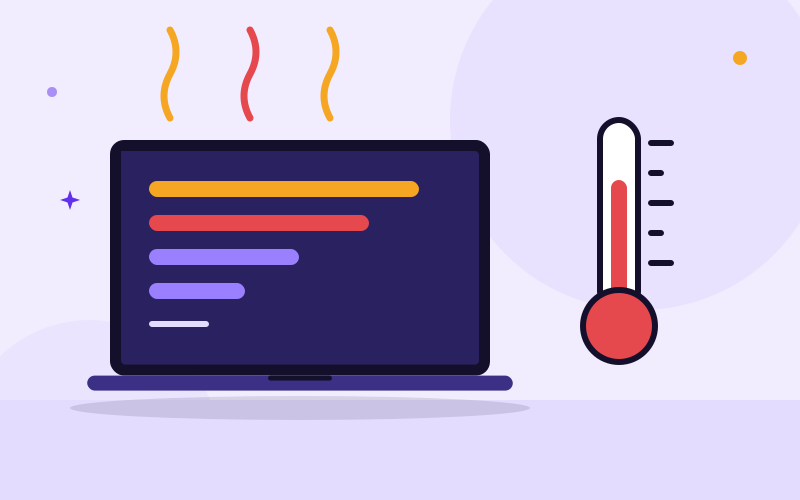
Slowness and heat feed each other. A laptop working hard produces heat. When the heat builds up, it slows down to protect itself, which makes everything feel sluggish.
- Too much work: too many programs, browser tabs, or background tasks keep the processor busy.
- Blocked cooling: dust in the vents and fan, dried thermal paste, or a failing fan.
- Bad surface: beds, sofas, pillows and laps block the intake vents, usually underneath.
- Malware or hidden miners: unwanted programs using the processor in the background.
- Old drive or low memory: a spinning hard drive or too little RAM makes Windows wait.
- Full storage: Windows needs free space to work.
- Heat in the room: hot rooms and charging while working make it worse.
Step 1: Find what is slowing it down in Task Manager
- Press Ctrl + Shift + Esc and open the Processes tab. If you see a small window, click More details.
- Click the CPU column header to sort by processor use, then Memory, then Disk.
- Watch the top of each column. Constant use over 80 to 90 percent in one column is your bottleneck.
- If a program you do not need is at the top, right-click it and choose End task. Do not end items listed as Windows processes or system tasks if you do not recognise them; search the name first.
- If Disk sits near 100 percent with an older hard drive, the drive is the bottleneck, and an SSD upgrade will help the most.
- If Memory is nearly full all the time, close tabs and programs, and think about more RAM.
An unfamiliar program using lots of CPU when you are doing nothing is suspicious, so scan for malware, as below.
Step 2: Trim start-up programs and background apps
- In Task Manager, open the Startup apps tab (Windows 11) or Startup tab (Windows 10).
- Sort by Startup impact.
- Right-click anything with a high impact that you do not need immediately, such as chat apps, updaters, game launchers and cloud tools, and choose Disable.
- Keep your antivirus, touchpad and audio drivers, and anything you rely on.
- Restart and compare start-up time.
Disabling does not uninstall the program; you can switch it back on. Also close browser tabs you are not using, and remove extensions you do not recognise in the browser's extensions page.
Step 3: Free up storage space
Aim to keep at least 15 to 20 percent of the C: drive free so Windows has room to work.
- Open Settings, System, Storage and see what is using space.
- Turn on Storage Sense, and click Temporary files to remove old update files and the Recycle Bin contents. Read the list before deleting; avoid removing Downloads unless you have checked it.
- Uninstall programs you no longer use in Settings, Apps, Installed apps.
- Move large photos and videos to an external drive or cloud storage, after confirming the copy opens.
- Empty the Recycle Bin.
Avoid so-called PC cleaner or booster programs. Many are useless and some are harmful.
Step 4: Scan for malware and check updates
- Open Windows Security from Start, then Virus and threat protection.
- Choose Scan options, select Microsoft Defender Antivirus (offline scan) or Full scan, and click Scan now. An offline scan restarts the laptop and takes a while.
- Go to Settings, Windows Update and install updates, including optional driver updates.
- Restart.
If you use cracked software or pirated games, treat this seriously, since they are a common source of hidden miners and malware. Remove them and use legitimate versions.
Step 5: Check the power mode
- Open Settings, System, Power and battery (Windows 11) or Power and sleep (Windows 10).
- Look at Power mode. 'Best performance' makes more heat and fan noise. 'Balanced' suits most work, and 'Best power efficiency' runs cooler.
- If the laptop is only overheating when charging and gaming or editing, drop to Balanced and see.
Also check Power options for 'Maximum processor state'. Setting it to 100 percent is normal. Some old guides suggest lowering it, but that makes the laptop slower, so only use it as a temporary test.
How to cool an overheating laptop safely
Easy habits
- Use the laptop on a desk or table, never on a bed, sofa, carpet or your lap while working hard.
- Raise the back slightly with a stand or even a book, so air can flow underneath.
- A cooling pad can help some laptops, especially when gaming, but it does not replace cleaning.
- Keep it out of direct sun and hot cars.
- Listen for the fan. A fan that is constantly at full speed while doing light tasks signals trouble.
Cleaning the vents from the outside
- Shut down and unplug the laptop.
- Hold the can of compressed air upright and short bursts of air into the vents, so the fan does not spin too fast. Gently hold the fan still with a toothpick if you can see it.
- Use a soft brush to loosen the lint around the vent and wipe it away. Do not use a vacuum cleaner, which can create static, or a hairdryer.
This helps with light dust. If the laptop has been used for years without cleaning, the dust is usually packed between the fan and heat sink where you cannot reach it, and opening the laptop is the proper fix.
Hardware upgrades that make a real difference
- SSD instead of a hard drive: the biggest improvement for slow older laptops, because Windows, programs and files all load faster.
- More RAM: helpful if memory is constantly full. Some laptops have soldered RAM and cannot be upgraded; a technician can check.
- Cleaning and fresh thermal paste: the thermal paste between the processor and heat sink dries out over years. Replacing it often lowers temperatures a lot.
- New fan: if the fan is noisy, wobbling or stopped.
- Fresh Windows installation: sometimes cleaner than fighting years of clutter. Back up first.
Upgrades are not always worth it. A laptop with a very old processor, a few GB of memory that cannot be expanded, and other faults may be better replaced. Ask the technician for an honest view.
When to get help from a technician
Stop and get it checked if:
- The laptop shuts off by itself, especially when working hard.
- The fan is very loud, rattling, or never spins at all.
- The underside is too hot to touch comfortably.
- You smell burning or see the case warping.
- The laptop has not been cleaned internally in years.
- Slowness remains after the software steps above.
Frequent overheating shortens the life of the battery and other components, so do not ignore it. A proper service opens the laptop, cleans the fan and heat sink, renews the thermal paste, and tests temperatures afterwards.
Frequently asked questions
Why is my laptop so hot and slow?
Usually dust blocking the vents and fan, too many programs running, or a laptop used on soft surfaces. Heat makes the processor slow itself down to protect itself. Check Task Manager, use a hard surface, and have the fan and vents cleaned if the laptop stays hot or noisy.
How do I stop my laptop from overheating?
Use it on a hard flat surface with the vents clear, close unneeded programs, set power mode to Balanced, and avoid heat and sun. Clean the vents gently with short bursts of compressed air. If it still overheats, the fan and thermal paste need servicing.
Is it safe to use a laptop that overheats?
Occasional warmth is normal, but repeated overheating or shutdowns can shorten the life of the battery, drive and processor. Stop using it if it smells of burning, the case warps, or the battery swells. Otherwise cool it down and get it serviced.
How often should a laptop be cleaned inside?
There is no fixed schedule. In dusty environments or with heavy use, cleaning every year or two is sensible. Clean it sooner if the fan runs loudly all the time, temperatures climb, or the laptop slows and shuts down from heat.
Will more RAM make my laptop faster?
Only if memory is the bottleneck. If Task Manager shows memory nearly full during normal use, more RAM helps. If the disk is at 100 percent on a spinning hard drive, an SSD gives a bigger improvement. Check which resource is maxed out first.
Should I reinstall Windows to fix a slow laptop?
It can help when the system is cluttered or corrupted, but it will not fix an overheating or failing drive. Try the free steps first, and back up your files before reinstalling because it erases the drive.

We repair laptops and build websites and business systems. Have a question this guide did not answer? Message us.
This guide is general advice. Every device and business is different, so if you are unsure, ask a technician before you act.